Managing Your MotionEdge Pro Subscription
Everything to do with your subscription now sits on one screen. Whether you want to start Pro, confirm it's actually active, see when it renews, get it working on a new phone, or cancel — it's all in the MotionEdge Pro section of Settings, and you never have to go hunting through Apple's menus to find out where you stand.
Where to find it
On iPhone or iPad: From the Sessions tab, open the overflow menu (⋯) in the top-right corner and choose Settings. MotionEdge Pro is the first section on the screen — you don't need to tap into anything, it's right there at the top.
On Mac: Open Settings from the MotionEdge menu in the menu bar (or press ⌘,), then click the MotionEdge Pro tab — the star icon, second from the left.
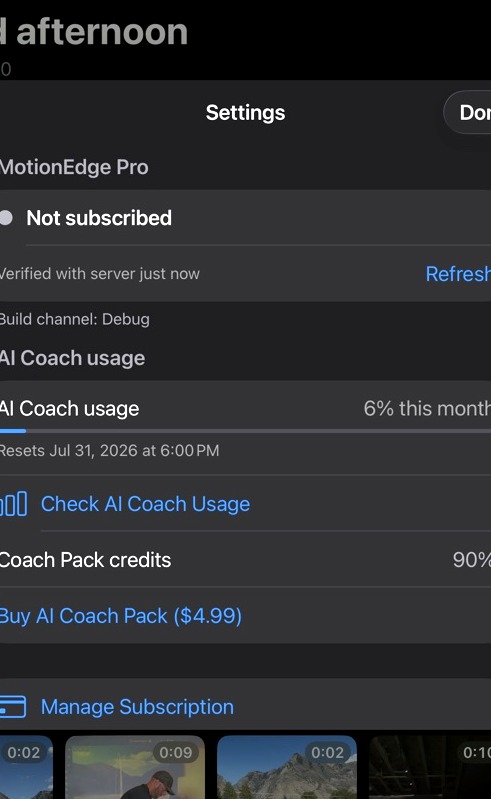
Checking your subscription status
The top of the section is a status card: a colored dot and a plain-English headline telling you exactly where you stand. There are five things it can say.
- "Pro — Active" (green) — you're subscribed. Underneath, it shows your plan and renewal date, like Monthly · Renews Jan 15, 2027.
- "Pro — Free Trial" (green) — your 7-day trial is running, with the time left underneath: 3 days left.
- "Pro — Cancelling" (orange) — you've cancelled, but Pro is still working through the end of the period you already paid for: Works until Jan 15, 2027 · won't renew. Nothing is switched off yet.
- "Not subscribed" (grey) — you're on the free tier. This is also what you'll see if a subscription has lapsed.
- "Can't verify — offline" (orange) — MotionEdge couldn't reach the server to confirm your status, so it's showing the last thing it knew. Pro keeps working; get back on a connection and it'll sort itself out.
Directly under the card is a line telling you how fresh that information is — Verified with server 5 minutes ago. That's there so you always know whether you're looking at a live answer or a cached one.
Re-checking your status with the server (the Refresh button)
Next to the status card there's a Refresh button. Tap it and MotionEdge throws away everything it had cached and asks the server fresh: is this person subscribed right now?
Just subscribed and the app still says Not subscribed? Just cancelled and want to confirm it registered? Been offline for a while? Tap Refresh. The button spins for a moment, then the status card and the "verified" line update in place — no sheets, no dialogs, no restart.
You should almost never need it. MotionEdge keeps itself current on its own:
- When you subscribe, Pro turns on immediately — it's part of the same purchase, there's no waiting period.
- When a subscription ends, access turns off on its own, usually within minutes and never more than 24 hours. You don't have to do anything.
Refresh is simply the button that lets you check right now instead of waiting — handy if you've just made a change and want to see it reflected, or you've been offline and want to confirm where you stand.
This works the way it does because your status is confirmed with the MotionEdge server, not just with your device. That's what keeps Pro consistent across your iPhone, iPad, and Mac, and what lets AI Coach usage pool correctly across your devices and your family.
If Refresh reports "Not subscribed" when you're certain you're subscribed, that's the server's answer rather than a network failure, and the fix is usually Restore Purchases — see below.
Your AI Coach usage and Coach Pack credits
The middle of the section shows what you've used, so there's never any mystery about where you are in the month.
- AI Coach usage — a percentage of your monthly allowance used so far, with a progress bar and the date it resets (Resets Apr 30, 2026, 5:00 PM, in your own time zone). Before your first AI Coach request in a given month, it simply says usage will appear after your first request.
- Coach Pack credits — how much of any AI Coach Packs you've bought is still left, shown as a percentage remaining, or None if you don't have any.
- Check AI Coach Usage — opens a fuller breakdown if you want the detail.
- Buy AI Coach Pack — a one-time top-up if you've run through your monthly allowance mid-swing-change. The price shown on the button is Apple's, in your own currency.
One thing that trips people up: usage and subscription are two different things. You can be "Pro — Active" and still hit your monthly AI Coach allowance. If AI Coach stops responding while your status card is green, check the usage bar — that's almost always the answer.
Subscribing to Pro
If you're on the free tier, there's a Subscribe button. It opens the MotionEdge Pro upgrade screen, where you'll find the plans and the 7-day free trial for anyone who hasn't used it yet. Apple handles the payment — there's no MotionEdge account to create, and no password to remember beyond your Apple Account.
For what you actually get, see MotionEdge Pro — What's in the Free Tier and What You Unlock with Pro, or tap See what's included in Pro at the bottom of the section to open the feature list on our website.
If you've already got Pro, the Subscribe button isn't shown — there's nothing to buy. That includes the case where you've cancelled but your paid period is still running (Pro — Cancelling). If you change your mind during that window, use Manage Subscription to turn renewal back on rather than subscribing again.
Restoring a purchase
Restore Purchases asks the App Store to re-check the Apple Account you're signed in with and turn Pro back on. Use it on a new iPhone, iPad, or Mac, after reinstalling the app, or when Pro is showing locked and you know you're subscribed. It's free, it never charges you, and you can do it as often as you like.
You'll get one of three messages:
- "Purchases Restored" — found it, Pro is on.
- "Nothing to Restore" — the App Store didn't find an active purchase for the Apple Account this device is signed in with. Nine times out of ten this is the wrong Apple Account, or a Family Sharing setting.
- "Couldn't Restore Purchases" — something went wrong talking to the App Store, usually the network. Check your connection and try again.
Restore vs. Refresh — which one? Restore is about Apple: it finds a purchase your device didn't know about. Refresh is about MotionEdge: it re-asks our server about a purchase it already knows about. If you're not sure, tap Refresh first; if that doesn't do it, tap Restore. Neither one can cost you anything.
The full troubleshooting walkthrough — Apple Account checks, Family Sharing, what restoring does and doesn't bring back — is in Restoring Your MotionEdge Pro Purchase.
Cancelling your subscription
Tap Manage Subscription. On iPhone and iPad this brings up Apple's own subscription sheet right over MotionEdge; on Mac it opens your Apple Account subscriptions page. From there you can cancel, switch between monthly and annual, or turn renewal back on if you'd cancelled earlier.
Apple handles cancellations, not MotionEdge. We can't cancel a subscription on your behalf, and neither can our support team — Apple deliberately keeps that in your hands. If the sheet doesn't open for some reason, you can always get there directly: Settings app → [your name] → Subscriptions on iPhone or iPad, or System Settings → [your name] → Media & Purchases → Subscriptions on Mac.
After you cancel, the status card updates to "Pro — Cancelling" with the date Pro runs until — tap Refresh if you want to see it change straight away.
Cancelling does not cut you off. You keep every Pro feature until the end of the period you've already paid for, which is what that date is telling you. You won't be charged again, and when the date arrives Pro switches off on its own — no final step for you to remember.
What happens to your swings when Pro ends
Nothing is deleted. Every swing, video, drawing, metric, and piece of TrackMan data stays on your device exactly as it is. What stops is new Pro activity — new iCloud sync, new TrackMan imports, new Remote Camera pairings, AI Coach — and the free-tier limits come back. Resubscribe later and everything switches straight back on with your data intact. The full breakdown is in MotionEdge Pro.
Quick reference
| I want to… | Do this |
|---|---|
| See if Pro is active | Settings → MotionEdge Pro — read the status card |
| See my renewal date | Status card caption, under "Pro — Active" |
| Make the app re-check my status | Refresh |
| Start Pro or the 7-day trial | Subscribe |
| Get Pro working on a new device | Restore Purchases |
| Cancel, or switch monthly ⇄ annual | Manage Subscription |
| Turn renewal back on after cancelling | Manage Subscription |
| See how much AI Coach I've used | The usage bar, or Check AI Coach Usage |
| Top up AI Coach beyond my monthly allowance | Buy AI Coach Pack |
| See what Pro includes | See what's included in Pro |
Still stuck? Email support@motionedge.ai and tell us what the status card says — that one line tells us most of what we need to know.